
 |
| Seriously, it's sad if she leaves early in Angel Beats! . |
Showing posts with label photoshop effects. Show all posts
Showing posts with label photoshop effects. Show all posts
Want a view? Here's the view.
 |
| View from 56 floors or about 210 meters from ground level; you can see your house from here. |
5 shots from Kodak easyshare camera. Yup, it's a ultra.... low end device.
Photoshop generated panorama shot of Singapore bay, with a height.
*This image is copyrighted, usage without expression from owner is prohibited.
Yuzuru Otonashi: Sketched form
 |
| 音無 結弦 |
Looking cool even black and white. I personally prefer the usual, not the serious face.


Panorama shot: Sights of sea bay
 |
| What a view! |
Photoshop generated panorama shot of Singapore bay.
Photo/Touchup | 20/11/2010, Black Rock Shooter
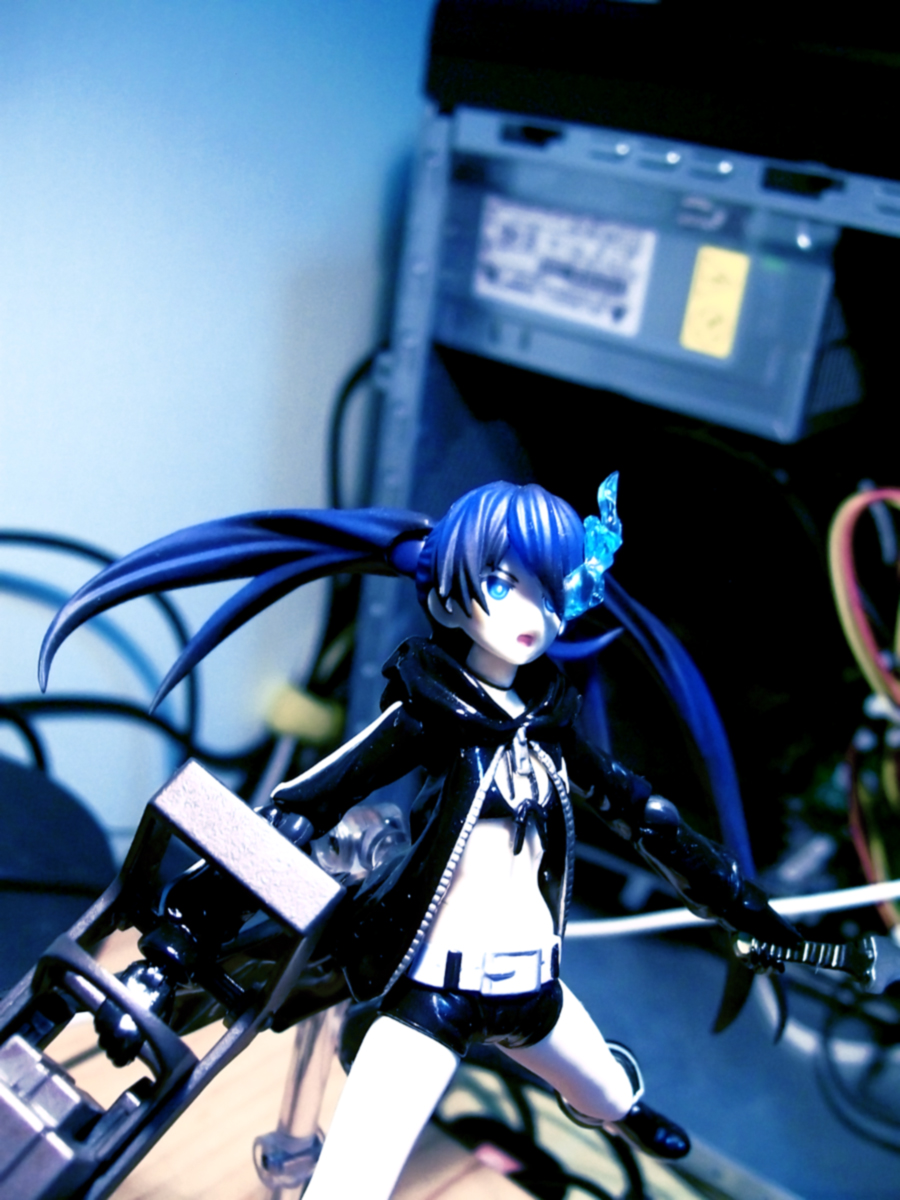 |
| A touched up image of Mato, in BRS~ |
 |
| Unedited image of Mato. |
*Either way, it looks cooler when seeing it face to face, not a image. =3
Random Crap (Oct)
Some random picture...
*This picture does absolutely nothing (other than being a eye-catcher) and takes up about 1 screen space. =D
 |
| Random? Maybe. |
That's all from random crap, the post that deliver random things.


Image fixing guide (Fix a Jpeg compression quality)
- This file "teach" you how to fix a image that has lossy compression from a Jpeg file. -
- At the same time, it contains a template on how to selectively enhance the image color -

Photoshop effects-Tutorial 1
Top notes: Combining filters with fx effects. Lets see.
I think this is quite nice, giving a soft tone though it's black and white.
Step 1.
Get a line art, tracing or drawing, as long as there's lines.
I use my traced image, created by Adobe Flash CS4 (Duh, Flash user)

Since mine does not have a background (exported from Adobe Flash), the effects are obvious later on.
Recommended: Remove any background and create a white(or colors that complement) background in a DIFFERENT layer.
Step 2.
Filter gallery. Just add the filters shown in the *picture. No need for advanced tuning or anything else.
*On the bottom right hand corner.

The filter gallery excludes my white background but it's fine for me. Though the effect is (almost) not obvious to screens, well leave it as it is.
Step 3.
-From now on it's individual pictures.
-From now on it's individual pictures.
Go to the layer you are authoring on and double click to open the layer style window.
The settings are there as well.
Drop shadow

Inner glow

Satin

Gradient (Optional)

Step 4.
Finally click Ok and poof~ it's done. Remember to fine tune if you need to.
Without fx effect, only filter.
+without+fx+effects+only+filter+effects.PNG)
With both filter and fx effect.

Enjoy~ =D
Looks natural and the tone is soft. This effect is made by accident, after fooling around Photoshop for 2 minutes...
First guide.
Program required: Photoshop 7.0 and above.
Program used: Photoshop CS4 Extended
Fooling with Photoshop since 2004
Self-taught too. =D
Mini post: Adding PS effects.
Just one of my old traces with simple effects. Nothing much at all. No color, no fancy gradient, just filter and blending effects.


- Looks natural. Thanks to special tweaking of shadow effect. -
Subscribe to:
Posts (Atom)


